3D Mesh Painter
For some 3D modeling applications, you may need to edit the scalar values of a mesh or to create a new scalar slot for painting values. These options, which are available in Dragonfly’s 3D Mesh Painter, let you:
-
Define where an operation is applied, such as mesh smoothing with a constraint (see Applying Smoothing with Constraint).
-
Set boundary conditions for simulations, such as for solving heat equations with NGSolve (see NGSolve).
-
Correct any inaccurate values contained within a scalar mesh.
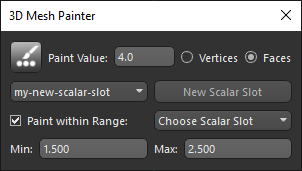
Choose Utilities > 3D Mesh Painter to open the 3D Mesh Painter panel, shown below.
3D Mesh Painter panel
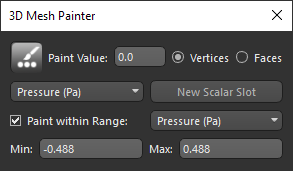
 Painting on Meshes
You can paint on the vertices or faces of a mesh that already includes scalar values or you can create a new scalar slot for painting. You can also choose to paint within the range of another scalar slot. For example, when constraining painting to the boundary faces of a solid mesh. You should note that the initial value set for boundary faces is -1.
-
Display the required mesh in a 3D view.
-
Choose Outlined as the Fill mode in the 3D settings box, recommended.
-
Choose Utilities > 3D Mesh Painter on the menu bar.
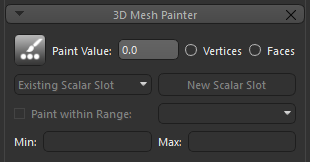
The 3D Mesh Painter panel appears on the Segment tab, as shown below.
-
Do the following if you plan to paint on an existing scalar slot:
-
Select Vertices or Faces as your painting target.
-
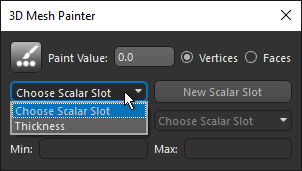
Choose the scalar slot that you plan to paint on in the Choose Scalar Slot drop-down menu.
-
Continue to step 6.
-
-
Do the following if you plan to paint on a new scalar slot:
-
Select Vertices or Faces as your painting target.
-
Click the New Scalar Slot button.
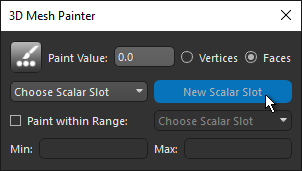
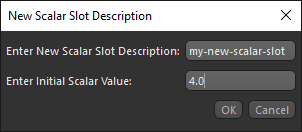
The New Scalar Slot Description dialog appears.
-
Enter a name for the new slot in the 'Enter New Scalar Slot Description' edit box and an initial value in the 'Enter Initial Scalar Value' edit box.
-
Click OK.
-
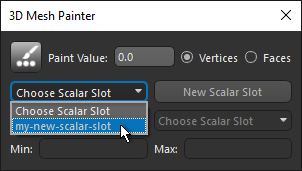
Select the new slot in the Choose Scalar Slot drop-down menu.
-
-
Select the scalar slot (measurement) that you plan to paint on in the Scalar information box on the Data Properties and Settings panel, as shown below.
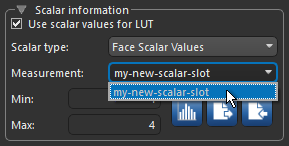
This will let you see the effect of painting on the vertices or faces of the mesh.
-
Select a paint value in the Paint Value edit box.
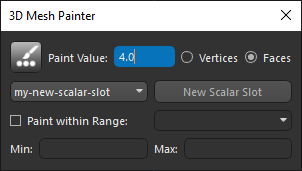
Note You can also set a range for painting, either within the range of another scalar slot or within a manually selected minimum/maximum range.
-
Hold down Left Ctrl ( or your configured 'Paint vertex or face' key) and paint the faces or vertices of the mesh in the 3D view, as required.
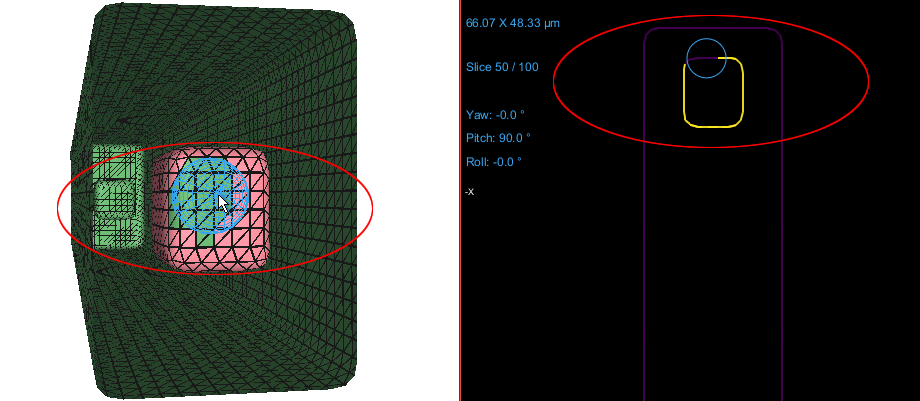
You can monitor your painting in the 2D views of the mesh, as shown in the above screenshot.
Note Use your mouse scroll wheel to change the size of the brush. If required, you can change the paint value and continue painting.
Configured Actions for the 3D Mesh Painter
A number of configured actions are available for the 3D Mesh Painter. The default settings for these actions are listed in the following table.
| Action | Key | Mouse |
|---|---|---|
| Decrease brush size (in 3D Mesh Painter) | - | Mouse wheel down |
| Increase brush size (in 3D Mesh Painter) | - | Mouse wheel up |
| Paint vertex or face (in 3D Mesh Painter) | Left Crtl | Left mouse |
